OpenAI’s unified voice experience lets you speak naturally while watching live answers and visuals—plus you can still switch back to the classic screen if you prefer.
Updated December 2, 2025
Summary
- One interface: Start a voice chat inside your normal conversation and watch replies appear as text with any images or maps—no separate screen.
- Keep your options: If you liked the classic voice screen, toggle “Separate mode” in Settings → Voice Mode. (OpenAI Release Notes) OpenAI Help Center
- Works on web and mobile: The update is rolling out globally across chatgpt.com and the apps. (OpenAI Release Notes) OpenAI Help Center
- Context you can trust: Scroll earlier messages, copy text while speaking, and view visuals without breaking flow.
Table of Contents (Clickable Navigation):
- What Changed—and Why It Matters
- How the New ChatGPT Voice Works
- Real-World Speech: Handles Background Noise & Accents
- Benefits You’ll Notice Right Away
- How to Switch Between Unified and Separate Voice Modes
- Use Cases for Every Level: Beginners → Intermediate → Power Users
- FAQs
- Conclusion
- References
What Changed—and Why It Matters
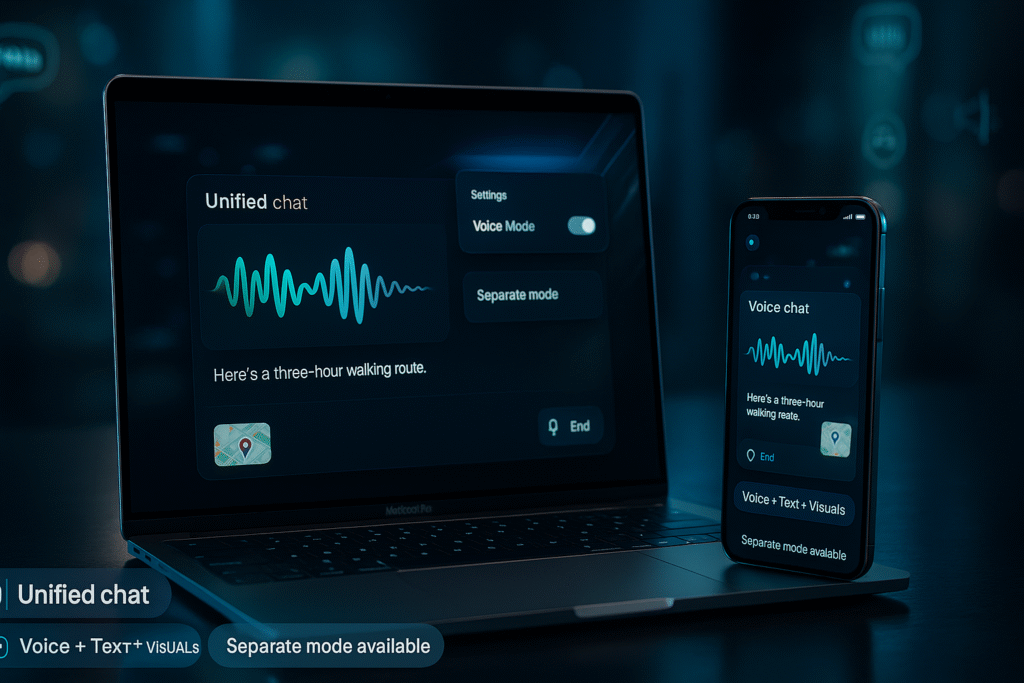
OpenAI moved ChatGPT Voice into the main chat view. You can talk and see what ChatGPT is saying at the same time, including visuals like images and maps that appear directly in the thread. That means less context switching and fewer missed lines.
Previously, voice lived in a separate, minimalist screen with an animated circle. If you missed something, you had to exit to read transcripts. Now, the live transcript and visuals stay with you in a single conversation, which feels closer to a natural dialogue.
Don’t want the change? OpenAI says you can turn on “Separate mode” in Settings → Voice Mode to keep the classic experience. The rollout covers web and mobile, and OpenAI indicates ongoing refinements. (OpenAI Release Notes) OpenAI Help Center
How the New ChatGPT Voice Works
- Start inside any chat: Tap the Voice icon; your conversation continues in the same window.
- See while you speak: Answers render as text in real time, alongside any images/maps ChatGPT shares.(TechCrunch)
- End anytime: Tap End to return to typing without losing your place.
- Review context live: Scroll previous messages or copy quotes during the voice exchange.
If it’s your first time on web, your browser may ask for microphone permission—grant access, then start speaking. (OpenAI Voice FAQ / Chrome Support) OpenAI Help Center+1
Real-World Speech: Handles Background Noise & Accents
The new voice experience is built to work in messy, real-life audio—it’s better at separating your speech from background noise (fans, traffic, people talking) and at understanding a wider range of global accents. In practice, that means fewer repeats and a more natural, back-and-forth conversation, even if you’re on the move. These gains build on OpenAI’s long-running speech models trained on large, diverse audio (the same family of research that underpins Whisper), along with newer transcribe models that improve word-error rate and language recognition. (OpenAI Whisper / OpenAI audio models / Whisper paper) OpenAI+2OpenAI+2
What you’ll notice
- Fewer “Can you repeat that?” Better robustness in everyday noise. (OpenAI audio models) OpenAI
- Stronger accent coverage across many Englishes and other languages. (OpenAI Whisper; independent study) OpenAI+1
- Smoother interruptions & barge-in when you jump in or correct mid-sentence (part of the realtime model stack powering voice). (OpenAI Realtime API) OpenAI Platform
Quick tips for best results
- Stay within a foot of the mic and face the phone/laptop; 2) Lower input gain if your environment is loud; 3) If desktop voice won’t start, enable mic permissions for chatgpt.com and try again. OpenAI Developer Community+1
Why this matters: Many readers asked about noisy cafés and strong accents. OpenAI’s speech stack has been explicitly trained and updated for noise and accent robustness, so you can expect less friction and more natural conversations than earlier iterations. OpenAI+1
Benefits You’ll Notice Right Away
- Fewer taps, more flow: Eliminating the extra voice screen keeps your focus on the conversation.
- Real-time clarity: Seeing text while listening reduces mishearing and lets you verify details as you go.
- Thread continuity: You can scroll, copy, and reference earlier answers without leaving voice.
- Choice preserved: Prefer the old interface? Separate mode is one toggle away. OpenAI Help Center
How to Switch Between Unified and Separate Voice Modes
- Unified (default): Voice lives inside chat on web and mobile.
- Switch back: Settings → Voice Mode → Separate mode → On. OpenAI Help Center+1
- Tip for first-time web users: If the mic doesn’t activate, check browser permissions under Privacy/Site permissions → Microphone and allow chatgpt.com. Data Studios ‧Exafin
Use Cases for Every Level: Beginners → Intermediate → Power Users
This section is for everyone—no specific industry. Use these ready-made examples to get value on day one.
A. Beginners: Get Comfortable with Everyday Tasks
1) Quick answers with receipts
- Prompt (voice): “What’s the difference between probiotics and prebiotics? Give me a two-sentence summary, then a quick grocery list.”
- Why it works: You’ll hear the short answer, then see the grocery list render. You can copy it immediately.
2) Step-by-step help while your hands are busy
- Prompt: “Walk me through changing a bicycle tube. Pause after each step until I say ‘next.’”
- Pro tip: Say “show me a diagram” and the image appears in-thread so you don’t lose your place.
3) Travel basics without juggling tabs
- Prompt: “Plan a 3-hour walking route near the Louvre, with two café stops and a map preview.”
- What you’ll see: The route description and map snapshot in the same chat for quick reference. Moneycontrol
4) Language practice
- Prompt: “Speak to me in slow Spanish about ordering at a café. After each sentence, show the English translation on screen.”
- Why it helps: Hearing + reading boosts comprehension.
5) Life admin coaching
- Prompt: “Help me write a friendly rent-increase counteroffer. Read it aloud, then show the text with two alternative closings.”
B. Intermediate: Work Smarter with Structured Flows
1) Meeting prep and notes
- Prompt: “Role-play as a hiring manager. Ask me five interview questions for a data analyst role. After my answers, summarize the key points in bullets on screen.”
- Value: You speak naturally while the summary appears in the thread for quick edits.
2) Learn faster with “see + say” breakdowns
- Prompt: “Explain how decision trees work. Narrate a simple example and draw a tiny ASCII diagram while speaking.”
- Why it works: The live text doubles as your reference sheet.
3) Drafting and revising in one pass
- Prompt: “I’ll dictate a 200-word intro about remote teamwork. As I speak, format it with short paragraphs and bold the takeaway.”
- Extra: Say “read it back” to hear the rhythm, then “tighten paragraph two.”
4) Research with receipts
- Prompt: “Summarize pros/cons of solar leasing vs. buying. Read the summary, then list 3 reputable sources I can click.”
- What changes now: You can tap sources right from the thread while the voice session continues.
5) Personal coaching
- Prompt: “Act as a running coach. Create a 6-week 5K plan. Read week one aloud, then paste the full plan as a checklist I can copy.”
C. Power Users: Faster Iteration, Deeper Control
1) Rapid prototyping (any domain)
- Prompt: “I’m going to sketch a feature idea. Interrupt me if requirements conflict. Summarize constraints at the end and show a checklist.”
- Why it’s powerful: You think out loud while ChatGPT prints the spec you can refine.
2) Complex comparisons with live callbacks
- Prompt: “Compare three note-taking approaches: PARA, Zettelkasten, and topic hubs. Speak the overview; on screen, give a 5-row table with use cases and trade-offs.”
- Outcome: You hear the big picture and see the matrix immediately.
3) Multimodal coaching
- Prompt: “I’ll upload a screenshot of a spreadsheet. While you describe what’s off, highlight any obvious formula issues in text.”
- Why it helps: Visual + narration accelerates troubleshooting.
4) Code and logic walkthroughs
- Prompt: “Read this pseudocode aloud and point out edge cases. Then echo the revised version in text with comments.”
- Value: Listen for understanding; copy the final draft from the thread.
5) Systems thinking sessions
- Prompt: “I’m designing a morning routine. Ask clarifying questions out loud. On screen, maintain a living checklist and time estimates.”
- Result: A facilitated workshop with outcomes you can save.
6) Voice rituals for deep work
- Prompt: “Every 20 minutes, ask me what I accomplished. If I ramble, summarize and suggest the next single task. Keep a running log in the chat.”
- Why it works: Gentle accountability, zero app switching.
Note on modes: In 2025, OpenAI responded to strong user feedback about voice experiences and has kept legacy options alongside newer capabilities. If you prefer that feel, enable Separate/Standard-style voice via settings. (TechRadar) TechRadar
FAQs
Q1: What exactly changed in ChatGPT Voice?
A: Voice now runs inside the regular chat, so you can speak and see answers (plus images/maps) at the same time—no separate screen required. TechCrunch
Q2: Can I go back to the old dedicated voice screen?
A: Yes. Go to Settings → Voice Mode → Separate mode and toggle it On to restore the classic interface. OpenAI Help Center+1
Q3: Does this work on both web and mobile?
A: Yes. OpenAI says the unified experience is rolling out globally across chatgpt.com and the apps. OpenAI Help Center
Q4: What if my microphone isn’t detected on desktop?
A: Check your browser’s privacy/site permissions and allow microphone access for chatgpt.com, then try again. Data Studios ‧Exafin
Q5: Why does OpenAI still offer a classic voice option?
A: User feedback showed a strong preference for familiar voice behavior, so OpenAI maintained a legacy option while evolving the newer experience. TechRadar
Conclusion
The unified ChatGPT Voice removes friction: you can talk, read, scroll, and reference visuals in one flow. Beginners benefit from step-by-step help, intermediates work faster with structured notes and summaries, and power users turn freeform thinking into precise outputs—without bouncing between screens.
Try it now: Start a voice session in your next chat. If you prefer the classic feel, turn on Separate mode in Settings. For practical prompts and templates like the ones above, download our free quick-start and join the newsletter for updates as features evolve.
References
- TechCrunch — ChatGPT’s voice mode is no longer a separate interface — coverage of the unified in-chat voice experience and rollout details.
https://techcrunch.com/2025/11/25/chatgpts-voice-mode-is-no-longer-a-separate-interface/ - OpenAI Help — ChatGPT Release Notes — notes on the unified voice experience, global rollout, and how to enable Separate mode.
https://help.openai.com/en/articles/6825453-chatgpt-release-notes - OpenAI Help — Voice Mode FAQ — how to start a voice chat on web/mobile, mic permissions, and Settings → Voice → Separate mode.
https://help.openai.com/en/articles/8400625-voice-chat-faq - OpenAI — Introducing Whisper — robustness foundations (trained on 680k+ hours) including accents and background noise.
https://openai.com/index/whisper/ - Radford, A., et al. (2022). Robust Speech Recognition via Large-Scale Weak Supervision — Whisper paper (method + benchmarks).
https://arxiv.org/abs/2212.04356 • PDF: https://cdn.openai.com/papers/whisper.pdf - OpenAI — Introducing next-generation audio models in the API — GPT-4o-based audio stack; training and performance notes relevant to real-world speech.
https://openai.com/index/introducing-our-next-generation-audio-models/ - OpenAI — Realtime API guide — low-latency speech interactions; product docs context for barge-in/interruptions behavior.
https://platform.openai.com/docs/guides/realtime - Graham, C., & Roll, N. (2024). Evaluating OpenAI’s Whisper ASR: Performance Analysis Across Diverse Accents and Speaker Traits — independent accent-robustness study.
Journal of the Acoustical Society of America Express Letters (AIP):
https://pubs.aip.org/asa/jel/article/4/2/025206/3267247/Evaluating-OpenAI-s-Whisper-ASR-Performance
Cambridge repository PDF:
https://www.repository.cam.ac.uk/bitstreams/4ef0ef50-0f8a-4325-82bf-7e333cb23565/download - TechRadar — OpenAI brings back Standard Voice Mode after user pushback — context for keeping a legacy voice option alongside newer features.
https://www.techradar.com/ai-platforms-assistants/chatgpt/openai-brings-back-standard-voice-mode-after-chatgpt-users-pushed-back-hard
All trademarks, logos, visual design, images, symbols, and content on this website are the exclusive property of JAVASCAPE AI. Any unauthorized use, reproduction, or distribution without explicit permission is strictly prohibited.